How To Create and Use SVG Files on Your Website

Enhance your website’s performance and design by mastering the creation and usage of SVG files. Discover how to optimize your site effectively with our comprehensive guide.

[ad_1]

Some people say Elvis Presley was the greatest performer of all time.

We say the SVG file format is a close rival.

You see, Elvis always delivered. His personal mantra was, “Taking care of business,” abbreviated as TCB on his jewelry.
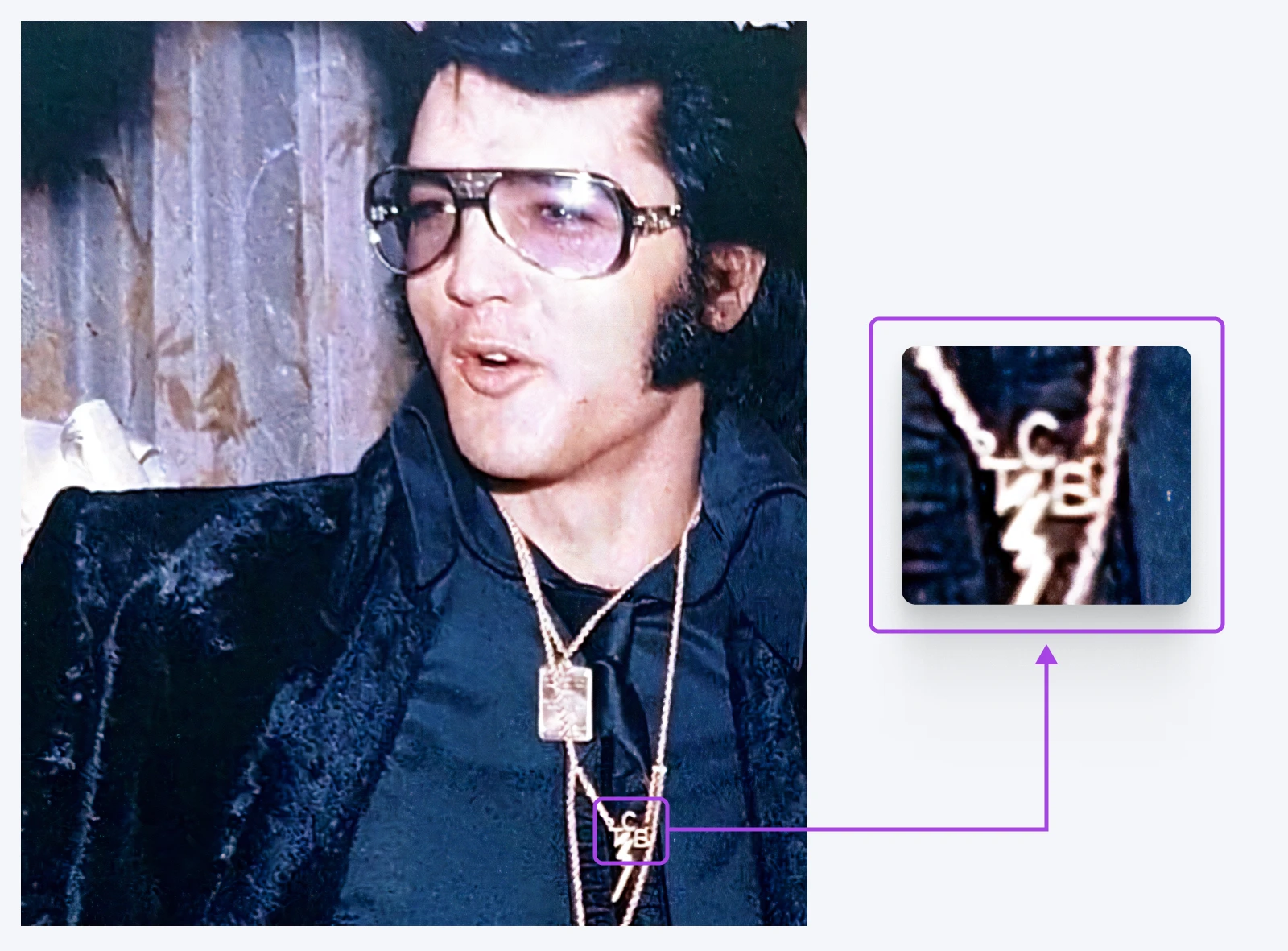
Photo of Elvis at George Klein’s wedding wearing his TCB necklace
Source

And you could say the same for SVG files.

DreamHost Glossary

SVG

An SVG file, or Scalable Vector Graphic file, is a file format that renders two-dimensional images. It describes how the image should appear using an XML text format.

Read More

No matter what project you’re working on, this image format will get the job done. These files are lightweight, scalable, and great for accessibility. You can even edit them using code.

Still need convincing? In this ever-so-readable guide, we take a closer look at the SVG format and explain how to use these files in your own projects.

Ready to get started? Let’s have a little less conversation, a little more action!

The ABCs of SVGs: Understanding Image Files

Say you’re building a website. You’re probably going to want some images.

Which file type should you use?

Your instinct might be JPEG or PNG. Maybe you’ll go wild and throw in some GIFs.

How To Create and Use SVG Files on Your Website
Source

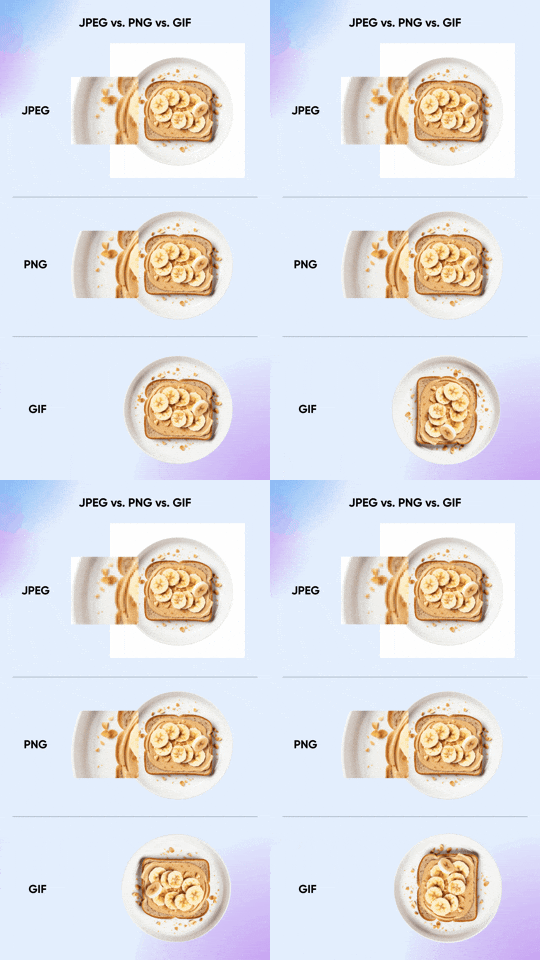
But…what’s the difference? Well, here’s a comparison of the usual suspects:

JPEG (Joint Photographic Experts Group)

  • Pros: Smaller file sizes, great for complex images.
  • Cons: Loses quality when compressed, no transparency.

PNG (Portable Network Graphics)

  • Pros: Lossless compression, supports transparency.
  • Cons: Bigger files than JPEGs.

GIF (Graphics Interchange Format)

  • Pros: Supports simple animations, small file size.
  • Cons: Limited colors, can look pixelated.
How To Create and Use SVG Files on Your Website

These formats might appear diverse. However, they are all examples of raster images.

Raster (or bitmap) images are painted with precisely placed pixels. They have fixed dimensions, colors, and shapes.

These file types are great for sharing images with a lot of detail, such as high-quality photos.

The downside is that you can’t ever change or stretch the original image. You can only paint over it or add more pixels.

Why SVGs Are So Useful

The SVG (Scalable Vector Graphics) format is different.

Vector files hold a set of text instructions on how to build an image. These files are written in XML (Extensible Markup Language).

DreamHost Glossary

XML

XML is an acronym for Extensible Markup Language. This language uses tags to add information to files, which both machines and humans can read.

Read More

When you try to load an SVG file, your device looks at the instructions and builds the picture on demand.

There are several advantages to this system:

  • SVGs can be scaled to any size and still look perfect.
  • They can also be edited like code files.
  • You can even style them using CSS.
  • Because SVGs are made of text, they have really small file sizes.
  • This means they take up less storage space on your web server.
  • And they can load faster than raster graphics.

One other benefit of using SVGs is improved accessibility. You can adjust these files locally on devices, according to the user’s needs, and screen readers can interpret them.

The downside of SVGs is that they can get very large if you include loads of detail. Plus, you can’t optimize them in the same way as raster images. If you want to share photography, you’re probably better off with a JPEG.

But for most other visual content, the SVG format is a strong option.

Feature SVG JPEG PNG GIF
Scalability Strong ✅ Nope ❌ Nope ❌ Nope ❌
File Size Usually small ✅ Can be small ✅ Often large ❌ Small for simple images ✅
Transparency Yep ✅ Nope ❌ Yep ✅ Yes, but limited ⚠️
Animation Heck yeah! ? Nope ❌ Nope ❌ Basic only ⚠️
Best for Graphics, icons, logos  Photos Images needing transparency Simple animations
Editability With code! ? Nope ❌ Nope ❌ Nope ❌
Browser Support Most modern browsers ✅ All browsers ✅ All browsers ✅ All browsers ✅

Common Uses for SVG Images

While SVGs are pretty versatile, they mostly appear in web design as:

  • Icons: From social media links to shopping cart buttons, SVG icons look crisp on any device.
  • Logos: Saving your brand logo as an SVG ensures it will look perfect everywhere — from tiny mobile screens to massive billboards.
  • Illustrations: Many websites now use SVG illustrations rather than stock images. Even when the graphics are very detailed, they scale perfectly.
  • Animations: Yes, SVGs can move! You can animate them for that extra flair on your website, like a spinning logo or a dancing character.
  • Infographics: Because SVGs are scalable, you can also use them to build interactive data visualizations. Very cool!

Working With SVGs: Create or Copy?

Okay, that’s enough starry-eyed praise. It’s time to get to work.

If you want to integrate SVGs into your digital projects, you need to grab some ready-made designs or make your own graphics from scratch.

Finding Free SVGs

Using someone else’s designs is the easier option. And luckily, thousands of SVGs are available to download online.

Many are free for personal projects, but you may need to pay for commercial use.

Here are some of our favorite resources:

  • Font Awesome: A popular pack of SVG icons.
  • Freepik: Huge database of vector graphics, illustrations, and icons.
  • Lineicons: Pack of over 8,400 clean, simple icons.
  • Free SVG: Library of completely free SVG illustrations. 
  • Open Doodles: Free colorful, character-like illustrations of people.
  • IconScout: Searchable library of over 9.5 million assets, including free and paid icons, illustrations, logos, and more.
  • DrawKit: Multiple packs of 2D/3D illustrations, free and premium.
  • unDraw: Loads of great, free SVG illustrations.

Remember that you can edit any SVG you download. So, you can use free files as a starting point for your own creations.

Get Content Delivered Straight to Your Inbox

Subscribe now to receive all the latest updates, delivered directly to your inbox.

How To Create and Edit SVG Files

Can’t find what you need online? Not to worry. Editing SVGs is a piece of cake.

Here’s a quick walkthrough:

1. Choose Your Software

The easiest way to edit SVGs is with a vector graphics editor. Here are some popular options:

  • Adobe Illustrator ($$$): The heavyweight champ. Pricey, but powerful.
  • Inkscape (free): The free alternative that packs a punch.
  • Figma ($): Great for collaborative design work.
  • Sketch ($): A lighter alternative to Illustrator, popular with interface designers.

We will base the rest of this walkthrough on Inkscape, but the process looks very similar in most vector editing apps.

2. Set Up Your Canvas

If you’re starting afresh, you’ll need to create a canvas for your work. In Inkscape, visit File > New and choose the dimensions for your new image.
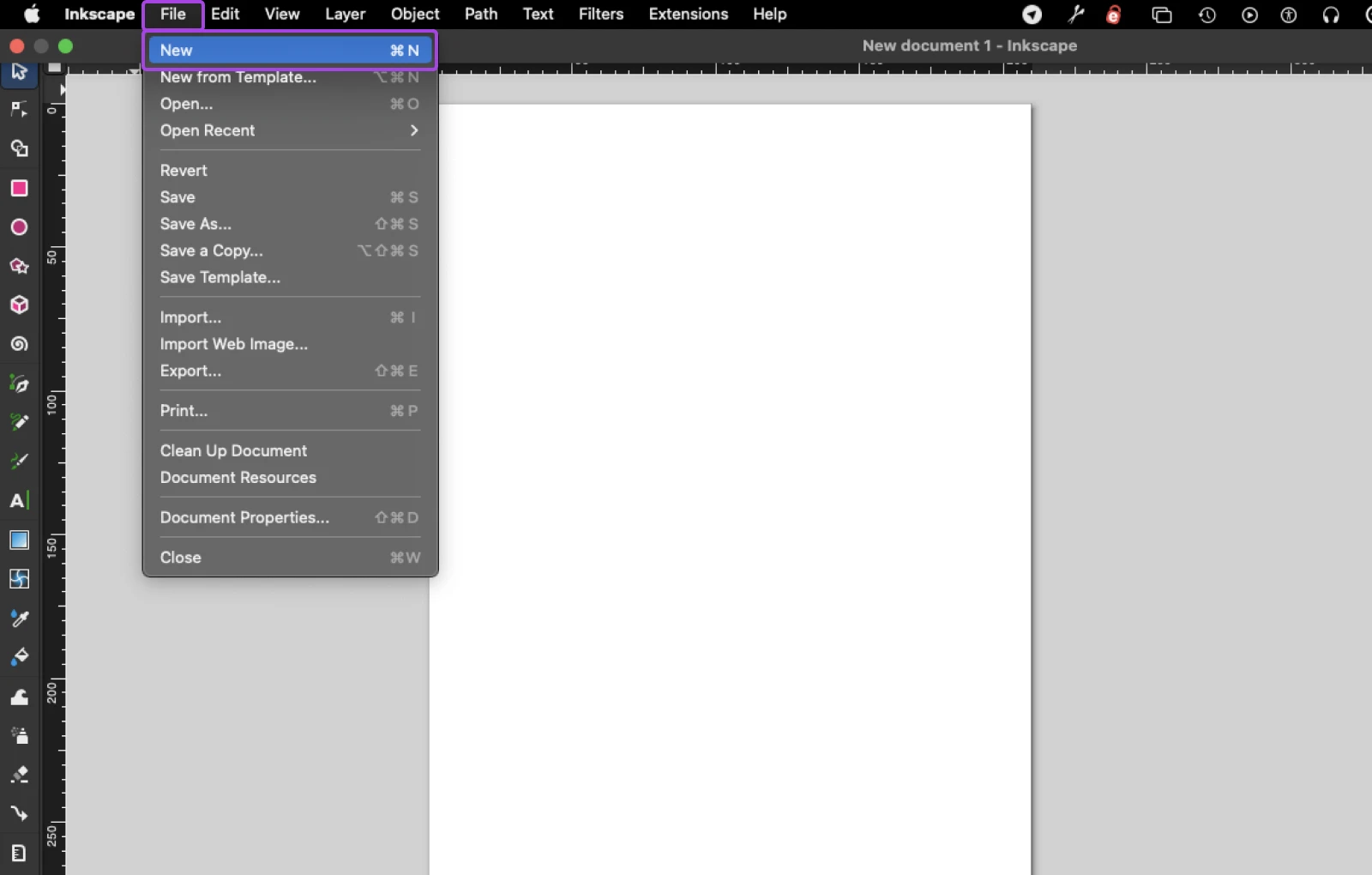
screenshot of the "New" Option located under File in the top nav menu

If you want to edit an existing SVG document, head to File > Open to fire up the editor.

3. Draw Your Design

The most important tool in vector editing is the Bezier tool. You can select it from the toolbar on the left of your workspace. The icon looks like a fountain pen drawing a curved line.

screenshot location of the Bezier tool which looks like a ink pen topper next to a drawn line

This tool lets you create straight lines and perfect curves with a few clicks.

Each shape you make contains individual paths and points, which are recorded in the underlying XML code.

Using the Bezier tool, you can easily go back and adjust these points and paths after you’ve made them.Once you’re happy with the structure, add your own colors via the Object Properties panel.
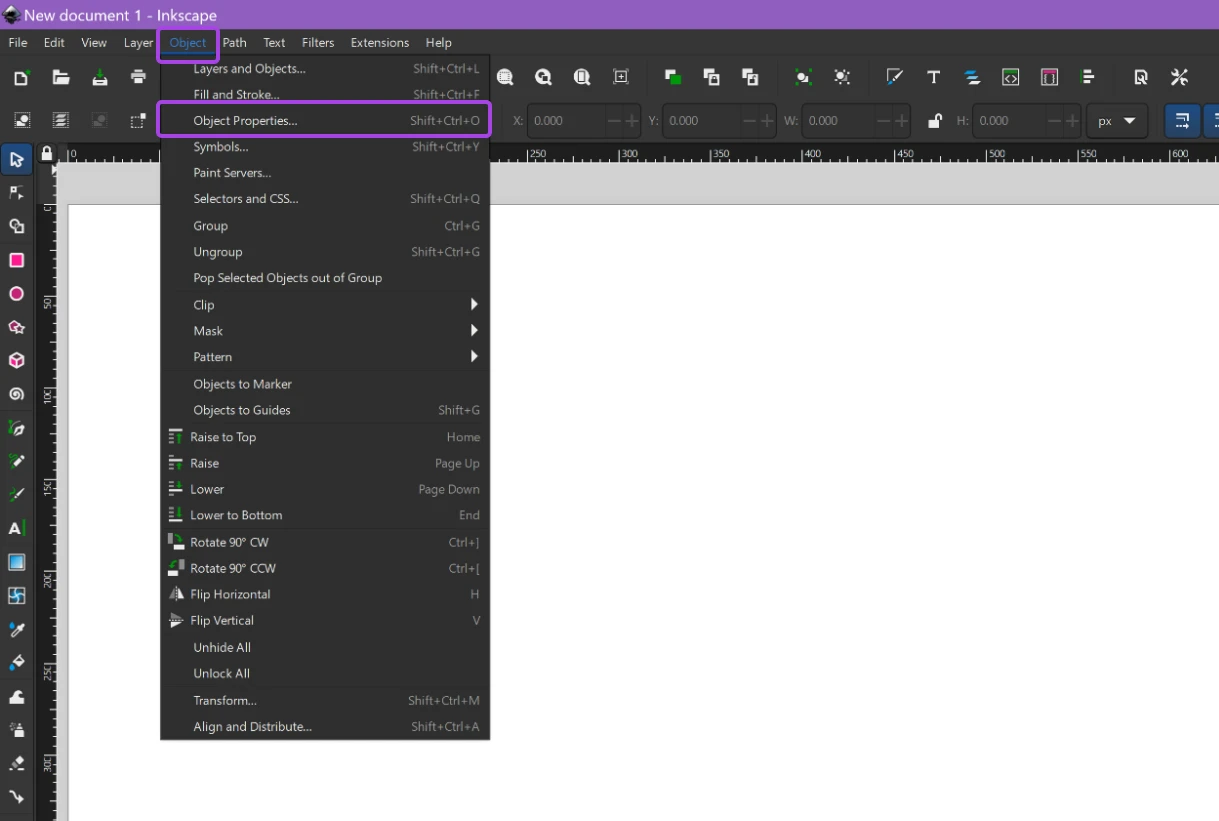
top nav bar with drop down from "Object" to "Object properties"

Object properties options will appear in the right-hand menu.
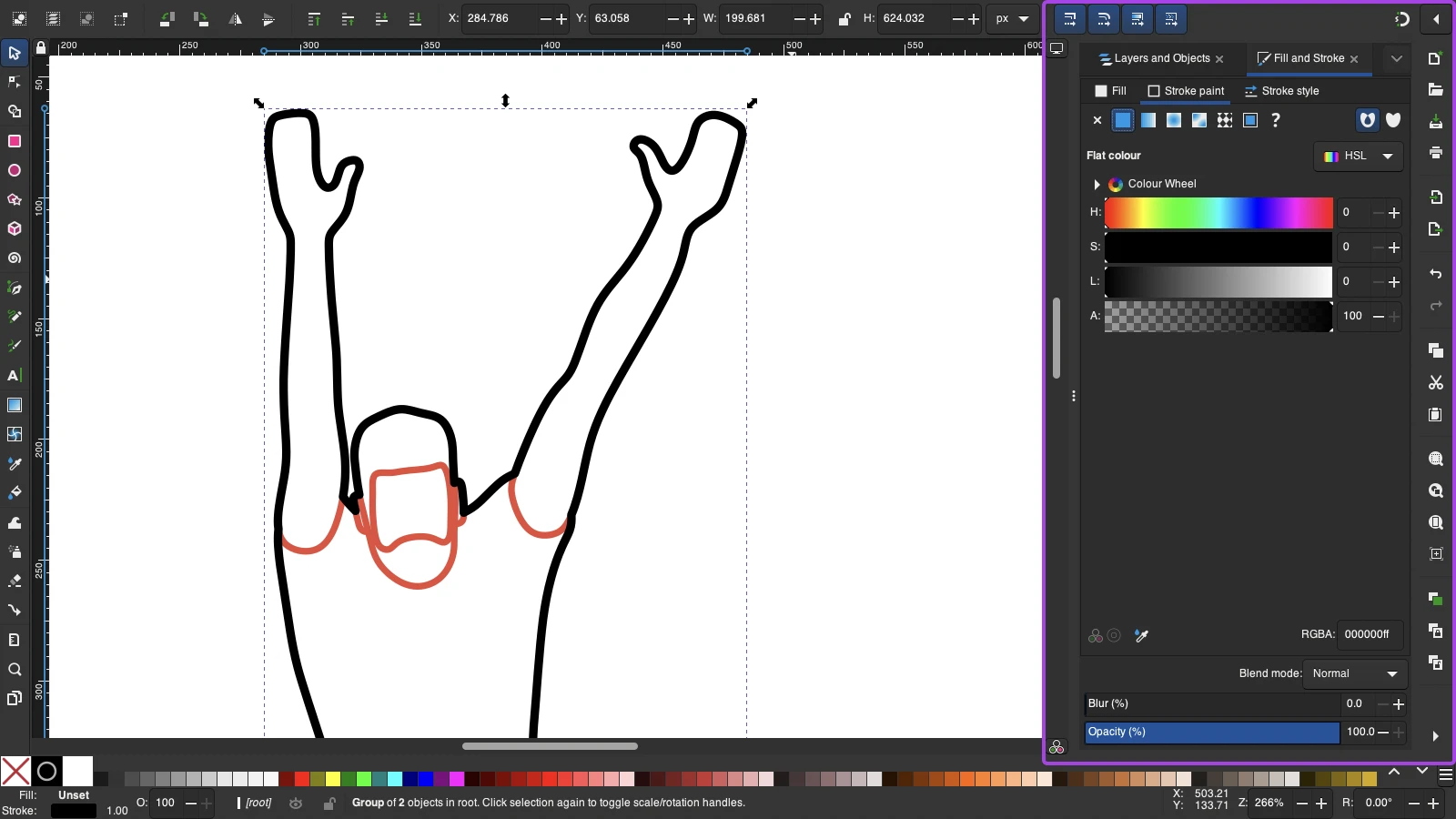
screenshot of the object properties menu now open on the right-hand menu showing color and pattern variations.

Pro tip: Want to dive deeper into vector editing? Inkscape has an awesome library of free tutorials right here.

4. Save As SVG

Once you’re happy with your graphic, head to File >Save As, and choose SVG as your format.
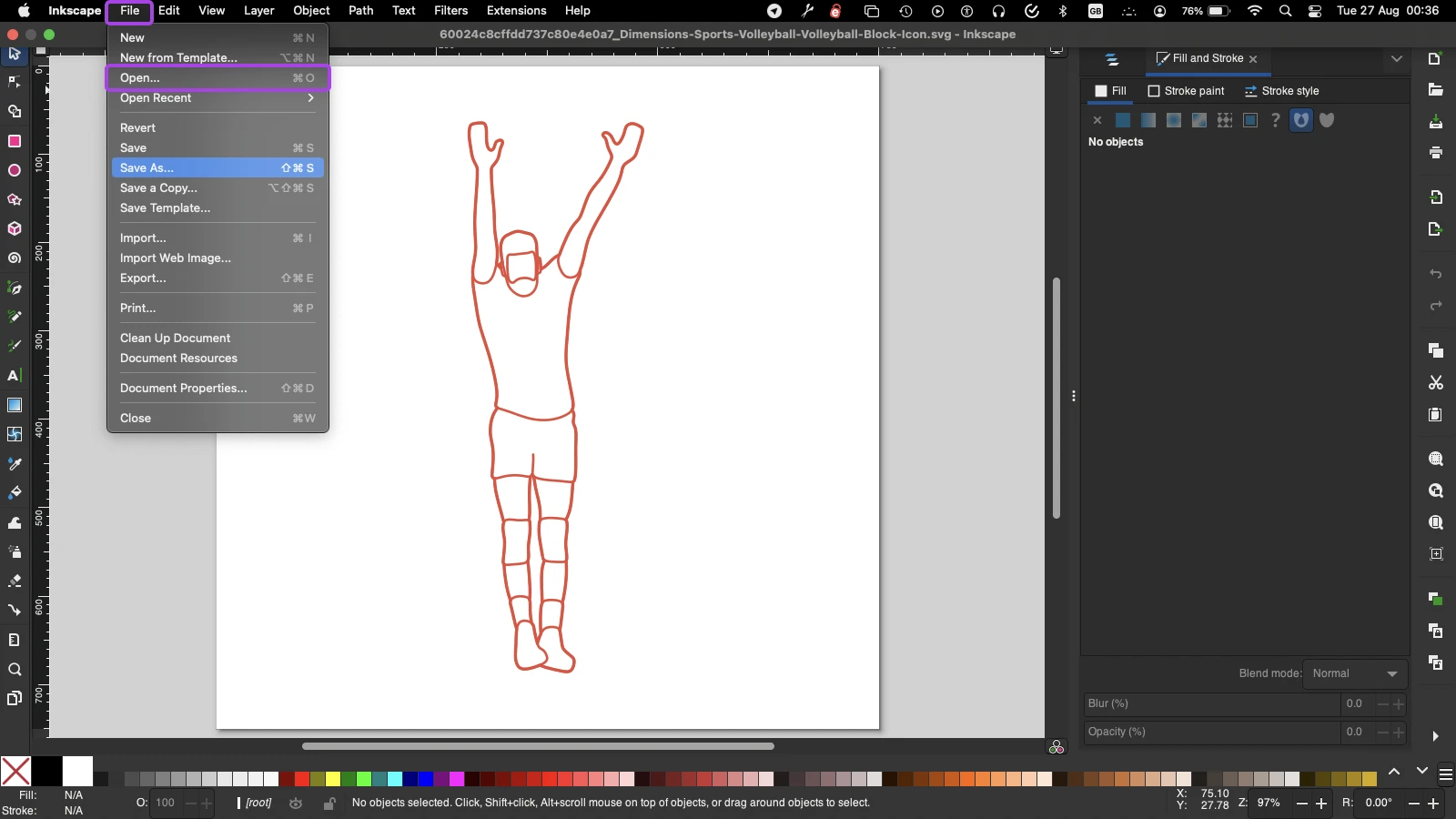
Drop down menu from "file" to "open"

Give it a cool name, and hit save!

How To Add SVGs to Your Website

You’ve made your vector masterpiece. Now, the world deserves to see it. 

You can embed SVGs in your website’s HTML. All you need is an How To Create and Use SVG Files on Your Website tag that points to your file. It should look something like this:

My Awesome SVG

Alternatively, you can insert the XML code from your SVG file straight into your web page using the tag.

Here’s an example:


This code will produce a nice round button, with a red outline and a green interior.

Enabling SVG in WordPress

Adding individual images via HTML is a very slow process. You might prefer to upload SVGs via your CMS (content management system).

But there’s a problem for WordPress users.

By default, WordPress doesn’t natively support SVG uploads. This is because bad actors can use SVGs to deliver malware.

The easiest way to enable SVGs is by installing a plugin like Safe SVG or SVG Support. These tools check every upload to make sure nothing nasty is hidden inside.

screenshot of the Safe SVG download screen

You can then upload and insert SVGs via the WordPress Media Library. Simply navigate to Media > Add New, and choose the graphics you want to include.

Styling SVGs With CSS

If you embed SVG files using the tag, you can change how your images will appear using CSS.

Say you created a green graphic, but you want it to look red on your website. Instead of creating a new copy, you can just write the following style:

svg {
  stroke: red;
  fill: blue;
}

The stroke attribute defines what color your graphic’s outline should be. Meanwhile, the fill attribute controls the color between the lines.

Pro tip: There are a lot more attributes to play with.

Making Your SVG Images Responsive

SVG files are infinitely scalable, so you can use them in responsive designs. It just requires a little CSS magic.

Here’s a step-by-step walkthrough:

1. Embed your image using the tag. This means you can make changes via CSS.

2. Remove the height and width dimensions. This will force your SVG to adapt to its container. Make sure the viewBox part remains. It should look something like this:


3. Set the maximum size of your SVG. This prevents the image from spilling outside its container. For example:

svg {
  display: inline-block;
  max-width: 100%;
}

And you’re done!

Pro tip: If this all sounds a bit technical, try ZipWP. It’s an AI-powered website builder that handles the styling for you.

SVG Masterclass: 4 Advanced Tips

We’ve covered the basics of creating and sharing SVGs. To finish up this guide, let’s look at some advanced techniques.

1. Animate Your SVG Graphics

Did you know that you can make your SVGs dance? Yes, animation works on this file type.

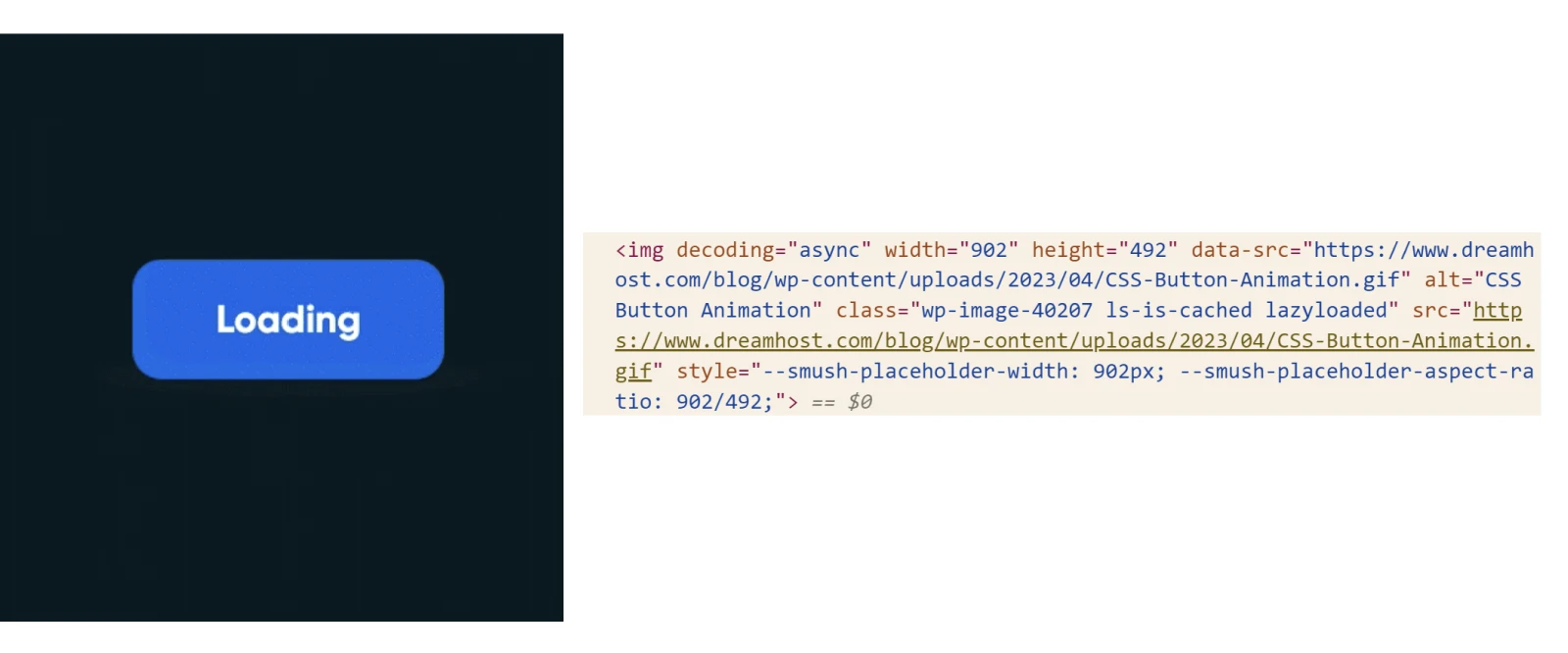
simple animation of a "Loading" button moving up and down the solid black background graphic

As with the original image, you can animate your graphics using simple XML code. Just add an element inside your shape to get things moving.

It should look something like this:


You can use this technique to add a little movement to icons, create a page loading indicator, or even design animated ads.

2. Use SVG Sprites for Faster Load Times

SVG sprites are like a greatest hits album for your icons. Instead of having dozens of individual icon files, you bundle them all into one SVG.

This means you only need to make one HTTP request per page, no matter how many icons you’re using. It’s a great way to reduce loading times and conserve bandwidth.

Many icon packs are delivered in sprite form nowadays. You can make your own, as well.

To embed a particular icon on your site, you simply pinpoint the area of the sprite file where that icon is saved. You can do this using basic CSS code:

#button {
  width: 20px;
  height: 20px;
  background: url('sprite.svg') -128px 0;
}

Pro tip: We recommend using an online tool like CSS Sprites Generator to calculate the correct distances.

3. Optimize Your SVG Files for Better Performance

While SVG files start pretty small, you can optimize them to make them even lighter.

Here’s how to do it:

  • Use a tool like SVGOMG. Yeah, that’s a real thing. It’s a great little web app that lets you compress SVGs without losing quality.
  • Simplify paths where possible. Complicated shapes can turn into vast amounts of XML code. Many vector graphics editors have tools for this task. (It’s under Path > Simplify in Inkscape).
  • Consider lazy loading for SVGs below the fold. By delaying loading images lower down the page, you can reduce the impact of multiple images.

4. Make Your Graphics Accessible

Because SVGs are text-based files, they are easy for screen readers and other assistive software to understand.

That said, there are still steps you can take to make them even more accessible:

  • Include </code> and <code></code> within your SVG files</strong>. These elements provide descriptions of the graphic, which are particularly helpful for users who rely on screen readers.</li> <li><strong>Add a <code>role="img"</code> attribute</strong>. This informs assistive technologies that the SVG is an image.</li> <li><strong>Fill in the <code>aria-labelledby</code> attribute. </strong>which should reference the IDs of the <code><title /></code> and <code></code> elements, linking them as labels for the image.</li> <li><strong>For more complex SVGs, provide alt text</strong>. Describe the image, so screen readers have less to interpret.</li> </ul> <figure class="wp-block-image size-full"><img title="How To Create and Use SVG Files on Your Website" loading="lazy" decoding="async" width="1600" height="666" src="https://www.erickswebsdesign.com/wp-content/uploads/2025/04/1743833114_9_How-To-Create-and-Use-SVG-Files-on-Your-Website.webp.webp" alt="simple animation of a "Loading" button moving up and down the solid black background graphic " class="wp-image-49649 lazyload" style="--smush-placeholder-width: 1600px;--smush-placeholder-aspect-ratio: 1600/666" /></figure> <p>An additional benefit of making SVGs super-accessible is that you’re also optimizing them for search. SEO win!</p> <h2 id="h2_taking-care-of-business" class="wp-block-heading">Taking Care of Business</h2> <p>Just as Elvis took care of business on stage, SVGs can help you take care of business on your website. These versatile, scalable graphics offer a world of possibilities for web designers and developers alike.</p> <p>From crisp logos and responsive icons to interactive animations and accessible visuals, SVGs are the unsung heroes of modern web design.</p> <p>Having checked out this guide, you should feel pretty confident about using SVGs in your projects. But is your hosting up to the test?</p> <p>If you want to ensure your site can handle tons of high-quality graphics, consider switching to DreamHost.</p> <p>Our hosting plans all come with unmetered bandwidth (excluding cloud hosting), meaning you don’t have to worry if your site gets lots of visitors.</p> <p><a href="https://panel.dreamhost.com/signup/?lng=en#!/shared/?plan=sharedunlimited&term=3year&p=SHARED-2593952" target="_blank" rel="noreferrer noopener">Sign up today</a> to try it for yourself!</p> <h2 id="h2_fun-faqs-about-svgs" class="wp-block-heading">Fun FAQs About SVGs</h2> <p>If you’re still curious about SVGs, that’s totally fine. We have more knowledge to share. Here’s a quick roundup of some questions we might have missed:</p> <h3 class="wp-block-heading">How do you convert SVG to JPEG?<strong> </strong></h3> <p>You can do this quickly using a desktop vector editor or an online tool like<a href="https://cloudconvert.com/svg-to-jpg" target="_blank" rel="noreferrer noopener"> CloudConvert</a>.</p> <h3 class="wp-block-heading" id="h-can-you-edit-svgs-directly-in-a-text-editor">Can you edit SVGs directly in a text editor?</h3> <p>Yes! SVGs are XML-based, so you can modify their code directly.</p> <h3 class="wp-block-heading" id="h-is-svg-clearer-than-png">Is SVG clearer than PNG?</h3> <p>In most cases, yes. This is particularly noticeable if you try to scale up a PNG file.</p> <h3 class="wp-block-heading" id="h-can-you-edit-svgs-using-javascript">Can you edit SVGs using JavaScript?</h3> <p>Yep, you can. This is useful for dynamic changes based on user inputs.</p> <h3 class="wp-block-heading" id="h-are-svgs-supported-in-all-browsers">Are SVGs supported in all browsers?</h3> <p>SVGs are supported in all modern web browsers, including Chrome, Firefox, Safari, and Edge.</p> <div class="article-newsletter article-newsletter--gradient"> <h2>Get Content Delivered Straight to Your Inbox</h2> <p>Subscribe now to receive all the latest updates, delivered directly to your inbox.</p> </div> <p><em>This page contains affiliate links. This means we may earn a commission if you purchase services through our link without any extra cost to you.</em></p> <div class="like-unlike-post"> <h5> Did you enjoy this article? </h5> <p> <button type="button" class="like-button" data-post-id="49598" aria-label="Like this post"> </button> </div> <div class="author-box"> <p class="author-bio p--sm"> Ian is a Product Designer based in Los Angeles, California. He is responsible for driving brand and product design at DreamHost, developing and maintaining our internal design system, and writing frontend code when he can. In his free time, he enjoys walking his dog, learning history, and discovering new music online and irl. Connect with him on LinkedIn: <a href="https://www.linkedin.com/in/ianhernandez23/">https://www.linkedin.com/in/ianhernandez23/</a> </p> </p></div> </p></div> <p>[ad_2]</p> </div> <div class="wp-block-group ewd-post-author-share is-content-justification-space-between is-layout-flex wp-container-core-group-is-layout-ffbb8546 wp-block-group-is-layout-flex"> <div class="wp-block-group ewd-post-author is-nowrap is-layout-flex wp-container-core-group-is-layout-a77cb073 wp-block-group-is-layout-flex"> <div class="ewd-post-author__avatar wp-block-avatar"><img alt='Erick Castillo Avatar' src='https://secure.gravatar.com/avatar/a853d17333494134ea977755b8de78f6986893b895b5904e2d4ced9ea45c8a9d?s=56&d=mm&r=g' srcset='https://secure.gravatar.com/avatar/a853d17333494134ea977755b8de78f6986893b895b5904e2d4ced9ea45c8a9d?s=112&d=mm&r=g 2x' class='avatar avatar-56 photo wp-block-avatar__image' height='56' width='56' loading='lazy' decoding='async'/></div> <div class="wp-block-group ewd-post-author__text is-layout-flow wp-block-group-is-layout-flow"> <p class="ewd-eyebrow wp-block-paragraph">Written By</p> <div class="ewd-post-author__name wp-block-post-author-name"><a href="https://www.erickswebsdesign.com/author/erick-castilloerickswebsdesign-com/" target="_self" class="wp-block-post-author-name__link">Erick Castillo</a></div> </div> </div> <div class="wp-block-group ewd-share is-nowrap is-layout-flex wp-container-core-group-is-layout-a77cb073 wp-block-group-is-layout-flex"> <p class="ewd-eyebrow wp-block-paragraph">Share Insight</p> <div class="ewd-share-buttons" aria-label="Share this article"> <a href="#" data-ewd-share="linkedin" aria-label="Share on LinkedIn">in</a> <a href="#" data-ewd-share="facebook" aria-label="Share on Facebook">f</a> <a href="#" data-ewd-share="x" aria-label="Share on X">x</a> </div> </div> </div> </div> <div class="wp-block-group alignfull ewd-post-cta-section has-global-padding is-layout-constrained wp-container-core-group-is-layout-1731824d wp-block-group-is-layout-constrained"> <div class="wp-block-group ewd-post-cta-card has-global-padding is-layout-constrained wp-container-core-group-is-layout-efff9222 wp-block-group-is-layout-constrained"> <h2 class="wp-block-heading has-text-align-center ewd-post-cta-title">Apply this strategy to your business.</h2> <p class="has-text-align-center ewd-post-cta-copy wp-block-paragraph">Stop fighting with rigid templates. Tell us your domain and we will send you a custom roadmap built around your site.</p> <div class="wp-block-group ewd-post-cta has-global-padding is-layout-constrained wp-block-group-is-layout-constrained"> <form method="POST" action="https://www.erickswebsdesign.com/create-and-use-svg-files-on-website/#ewd_form_1457befb6a_response" class="ewd-form-container" id="ewd_form_1457befb6a"><input type="hidden" id="ewd_form_nonce" name="ewd_form_nonce" value="9c241b5fcc" /><input type="hidden" name="_wp_http_referer" value="/create-and-use-svg-files-on-website/" /><input type="hidden" name="ewd_form_id" value="ewd_form_1457befb6a"><div class="ewd-hp-wrap" style="display:none !important; visibility:hidden !important;"><input type="text" name="ewd_hp_field" value="" tabindex="-1" autocomplete="off"></div><div class="ewd-form-group ewd-field-type-website-url ewd-field-control-url ewd-field-width-full"><label class="ewd-form-label" for="website-url-befb6a">Website URL</label><input type="url" name="website-url" id="website-url-befb6a" class="ewd-form-control" required></div><div class="ewd-form-group ewd-field-type-email-address ewd-field-control-email ewd-field-width-full"><label class="ewd-form-label" for="email-address-befb6a">Email Address</label><input type="email" name="email-address" id="email-address-befb6a" class="ewd-form-control" required></div><button type="submit" name="ewd_form_submit" class="ewd-form-submit">Request My Roadmap</button></form> </div> <p class="has-text-align-center ewd-post-cta-note wp-block-paragraph">Secure Technical Intake System</p> </div> </div> <div class="wp-block-group alignfull ewd-related-section has-global-padding is-layout-constrained wp-container-core-group-is-layout-1731824d wp-block-group-is-layout-constrained"> <div class="wp-block-group ewd-related-heading has-global-padding is-layout-constrained wp-container-core-group-is-layout-896991be wp-block-group-is-layout-constrained"> <p class="has-text-align-center ewd-related-kicker wp-block-paragraph">Keep Reading</p> <h2 class="wp-block-heading has-text-align-center ewd-related-title">Related Insights</h2> </div> <div class="ewd-loop-container ewd-layout-grid ewd-source-manual"><article class="ewd-loop-item post-1389375 type-post"><div class="ewd-item-image"><img width="1024" height="1024" src="https://ewdcdn.erickswebsdesign.com/ewd/2025/12/23054104/1766468456.png" class="attachment-large size-large wp-post-image" alt="Consejos + datos de un especialista en email marketing | Email marketing south texas | Ericks Webs Design" decoding="async" loading="lazy" title="Tips + data from an email marketer" /></div><div class="ewd-item-content"><div class="ewd-item-categories"><span class="ewd-cat">Blog</span></div><h2 class="ewd-item-title"><a href="https://www.erickswebsdesign.com/email-marketing-strategies-business-transformation-mcallen/">Tips + data from an email marketer</a></h2><div class="ewd-item-meta"><span class="ewd-date">December 11, 2025</span></div><div class="ewd-item-excerpt">Explore how email marketing can revolutionize your McAllen business. Implement personalized strategies to captivate your audience, boost conversions, and nurture long-term connections.</div><a href="https://www.erickswebsdesign.com/email-marketing-strategies-business-transformation-mcallen/" class="ewd-read-more">Read Insight</a></div></article><article class="ewd-loop-item post-1389501 type-post"><div class="ewd-item-image"><img width="1024" height="1024" src="https://ewdcdn.erickswebsdesign.com/ewd/2026/01/02180311/1767376983.png" class="attachment-large size-large wp-post-image" alt="Estrategias de generación de leads para atraer negocios y fomentar el crecimiento | Ericks Webs Design" decoding="async" loading="lazy" title="Lead generation strategies to start attracting business and drive growth" /></div><div class="ewd-item-content"><div class="ewd-item-categories"><span class="ewd-cat">Blog</span></div><h2 class="ewd-item-title"><a href="https://www.erickswebsdesign.com/lead-generation-strategies-mcallen-south-texas/">Lead generation strategies to start attracting business and drive growth</a></h2><div class="ewd-item-meta"><span class="ewd-date">November 10, 2025</span></div><div class="ewd-item-excerpt">Uncover potent lead generation tactics to draw in ideal customers and propel business expansion in McAllen, South Texas. Understand the significance of lead generation in ensuring long-term success.</div><a href="https://www.erickswebsdesign.com/lead-generation-strategies-mcallen-south-texas/" class="ewd-read-more">Read Insight</a></div></article><article class="ewd-loop-item post-1389089 type-post"><div class="ewd-item-image"><img width="1024" height="1024" src="https://ewdcdn.erickswebsdesign.com/ewd/2025/11/01045249/1764564758.png" class="attachment-large size-large wp-post-image" alt="Guía de desarrollo web: mejora tu presencia en línea" decoding="async" loading="lazy" title="A breakdown of the basics for beginners" /></div><div class="ewd-item-content"><div class="ewd-item-categories"><span class="ewd-cat">Blog</span></div><h2 class="ewd-item-title"><a href="https://www.erickswebsdesign.com/web-development-fundamentals-basics-for-beginners/">A breakdown of the basics for beginners</a></h2><div class="ewd-item-meta"><span class="ewd-date">November 6, 2025</span></div><div class="ewd-item-excerpt">Master the fundamentals of web development with this beginner's guide. Discover how to enhance your website, drive traffic, and attract leads to boost your online presence.</div><a href="https://www.erickswebsdesign.com/web-development-fundamentals-basics-for-beginners/" class="ewd-read-more">Read Insight</a></div></article></div> </div> </main> <footer class="wp-block-template-part"> <div class="ewd-site-footer" role="contentinfo"> <div class="ewd-site-footer__trust" aria-label="Technology stack"> <div class="ewd-site-footer__trust-inner"> <span class="ewd-site-footer__eyebrow">Engineered On</span> <div class="ewd-site-footer__tech-list"> <span>AWS</span> <span>Google</span> <span>Core Web Vitals</span> <span>WordPress</span> <span>Stripe</span> </div> </div> </div> <div class="ewd-site-footer__main"> <div class="ewd-site-footer__grid"> <section class="ewd-site-footer__brand" aria-labelledby="ewd-footer-brand"> <a class="ewd-site-footer__logo" href="/" aria-label="Ericks Webs Design home"> <img loading="lazy" decoding="async" src="https://ewdcdn.erickswebsdesign.com/2026/06/04073220/Ericks-Webs-Design-Full-Size350x56.svg" alt="Ericks Webs Design" width="350" height="56"> </a> <h2 id="ewd-footer-brand">Performance websites for growth-focused businesses.</h2> <p>Fast websites, search visibility, and automation systems built to turn traffic into booked work.</p> <div class="ewd-site-footer__social" aria-label="Social links"> <a href="https://linkedin.com/company/erickswebsdesign" aria-label="LinkedIn">in</a> <a href="https://facebook.com/erickswebsdesign" aria-label="Facebook">f</a> <a href="https://instagram.com/erickswebsdesign" aria-label="Instagram">ig</a> </div> </section> <nav class="ewd-site-footer__nav" aria-labelledby="ewd-footer-solutions"> <h3 id="ewd-footer-solutions">Digital Solutions</h3> <a href="/services/custom-web-design/">Custom Web Engineering</a> <a href="/services/seo-marketing/">Search Dominance SEO</a> <a href="/services/app-development/">App Development</a> <a href="/websites/">Website Systems</a> <a href="/services/website-care-plans/">Asset Care & Protection</a> <a href="/process/">Our Process</a> <a href="/locations/">Service Areas</a> <a href="/start-project-deposit/">Start With Deposit</a> <a href="/signature-generator/" class="ewd-site-footer__accent-link">Free Email Signature Generator</a> <a href="/free-seo-audit/" class="ewd-site-footer__accent-link">Free Technical Audit</a> </nav> <nav class="ewd-site-footer__nav" aria-labelledby="ewd-footer-industries"> <h3 id="ewd-footer-industries">Industry Assets</h3> <a href="/industry/legal/">Law Firm Authority</a> <a href="/industry/medical/">Healthcare Systems</a> <a href="/industry/contractors/">Contractor Growth</a> <a href="/industry/real-estate/">Real Estate IDX</a> <a href="/industry/restaurants/">Restaurant Growth</a> </nav> <section class="ewd-site-footer__contact" aria-labelledby="ewd-footer-contact"> <h3 id="ewd-footer-contact">Global Hub</h3> <div class="ewd-site-footer__contact-item"> <span aria-hidden="true">TX</span> <p><strong>Rio Grande Valley</strong>5208 N 10th St Unit 4004<br>McAllen, TX 78504</p> </div> <div class="ewd-site-footer__contact-item"> <span aria-hidden="true">@</span> <p><strong>Direct Outreach</strong><a href="mailto:info@erickswebsdesign.com">info@erickswebsdesign.com</a></p> </div> <a class="ewd-site-footer__portal" href="/client-login/">Secure Client Portal</a> </section> </div> </div> <div class="ewd-site-footer__divider" aria-hidden="true"></div> <div class="ewd-site-footer__expansion"> <nav class="ewd-site-footer__mini-grid" aria-label="Resource and industry links"> <section> <h3>Growth Guides</h3> <a href="/resources/">Resource Library</a> <a href="/resources/why-your-business-needs-a-website/">Why Your Business Needs a Website</a> <a href="/resources/website-vs-facebook-page/">Website vs Facebook Page</a> </section> <section> <h3>Planning</h3> <a href="/resources/website-cost-guide/">Website Cost Guide</a> <a href="/resources/local-seo-for-small-businesses/">Local SEO Guide</a> <a href="/resources/website-care-plan-benefits/">Care Plan Benefits</a> </section> <section> <h3>Free Tools</h3> <a href="/signature-generator/">Email Signature Generator</a> <a href="/free-seo-audit/">Free Technical SEO Audit</a> <a href="/resources/website-cost-guide/">Website Cost Planner</a> </section> <section> <h3>Proof & Process</h3> <a href="/results/">Results & Proof</a> <a href="/process/">How Projects Work</a> <a href="/start-project-deposit/">Start With Deposit</a> </section> <section> <h3>Service Areas</h3> <a href="/locations/">All Service Areas</a> <a href="/locations/mission-tx-web-design-seo/">Mission SEO</a> <a href="/locations/edinburg-tx-web-design-seo/">Edinburg SEO</a> </section> <section> <h3>RGV Growth</h3> <a href="/locations/harlingen-tx-web-design-seo/">Harlingen SEO</a> <a href="/locations/brownsville-tx-web-design-seo/">Brownsville SEO</a> <a href="/locations/weslaco-tx-web-design-seo/">Weslaco SEO</a> </section> <section> <h3>Hospitality</h3> <a href="/industry/restaurants/">Restaurant Menus & SEO</a> <a href="/industry/party-places/">Events & Entertainment</a> <a href="/industry/creators/">Creator Platforms</a> </section> <section> <h3>Professional B2B</h3> <a href="/industry/legal/">Legal Authority</a> <a href="/industry/medical/">Medical Growth</a> <a href="/industry/real-estate/">Real Estate Systems</a> </section> <section> <h3>Home Services</h3> <a href="/industry/contractors/">Contractors</a> <a href="/industry/ecommerce/">eCommerce & WooCommerce</a> <a href="/services/website-care-plans/">Care Plans</a> </section> <section> <h3>Creative & Niche</h3> <a href="/industry/photography/">Photography Portfolios</a> <a href="/industry/fitness/">Fitness & Training</a> <a href="/industry/smoke-shops/">Specialty Retail</a> </section> </nav> </div> <div class="ewd-site-footer__legal"> <p>Copyright © 2026 Ericks Webs Design. Hand-coded for performance.</p> <nav aria-label="Legal links"> <a href="/privacy-policy/">Privacy Policy</a> <a href="/terms-of-service/">Terms of Service</a> <a href="/sitemap/">Sitemap</a> </nav> </div> </div> </footer> </div> <script type="speculationrules"> {"prefetch":[{"source":"document","where":{"and":[{"href_matches":"/*"},{"not":{"href_matches":["/wp-*.php","/wp-admin/*","/wp-content/uploads/*","/wp-content/*","/wp-content/plugins/*","/wp-content/themes/ewd-theme/*","/*\\?(.+)"]}},{"not":{"selector_matches":"a[rel~=\"nofollow\"]"}},{"not":{"selector_matches":".no-prefetch, .no-prefetch a"}}]},"eagerness":"conservative"}]} </script> <style> :root { -webkit-user-select: none; -webkit-touch-callout: none; -ms-user-select: none; -moz-user-select: none; user-select: none; } </style> <script type="text/javascript"> /*<![CDATA[*/ document.oncontextmenu = function(event) { if (event.target.tagName != 'INPUT' && event.target.tagName != 'TEXTAREA') { event.preventDefault(); } }; document.ondragstart = function() { if (event.target.tagName != 'INPUT' && event.target.tagName != 'TEXTAREA') { event.preventDefault(); } }; /*]]>*/ </script> <script id="remove-weak-pw-js" src="https://www.erickswebsdesign.com/wp-content/plugins/all-in-one-wp-security-and-firewall/js/remove-weak-pw.js?ver=5.4.9"></script> <script id="ewd-theme-site-js" src="https://www.erickswebsdesign.com/wp-content/themes/ewd-theme/assets/js/ewd-site.js?ver=1781369967"></script> <script id="ewd-theme-single-post-js" src="https://www.erickswebsdesign.com/wp-content/themes/ewd-theme/assets/js/ewd-single-post.js?ver=1.0.0"></script> <script id="aios-bitwarden-2fa-compat-js" src="https://www.erickswebsdesign.com/wp-content/plugins/ewd-security-must-have/includes/aios-bitwarden-2fa-compat/assets/aios-bitwarden-2fa-compat.js?ver=1.1.11"></script> <script id="wp-emoji-settings" type="application/json"> {"baseUrl":"https://s.w.org/images/core/emoji/17.0.2/72x72/","ext":".png","svgUrl":"https://s.w.org/images/core/emoji/17.0.2/svg/","svgExt":".svg","source":{"concatemoji":"https://www.erickswebsdesign.com/wp-includes/js/wp-emoji-release.min.js?ver=91f938df8f78f4d9829bc78dcad04176"}} </script> <script type="module"> /*! This file is auto-generated */ const a=JSON.parse(document.getElementById("wp-emoji-settings").textContent),o=(window._wpemojiSettings=a,"wpEmojiSettingsSupports"),s=["flag","emoji"];function i(e){try{var t={supportTests:e,timestamp:(new Date).valueOf()};sessionStorage.setItem(o,JSON.stringify(t))}catch(e){}}function c(e,t,n){e.clearRect(0,0,e.canvas.width,e.canvas.height),e.fillText(t,0,0);t=new Uint32Array(e.getImageData(0,0,e.canvas.width,e.canvas.height).data);e.clearRect(0,0,e.canvas.width,e.canvas.height),e.fillText(n,0,0);const a=new Uint32Array(e.getImageData(0,0,e.canvas.width,e.canvas.height).data);return t.every((e,t)=>e===a[t])}function p(e,t){e.clearRect(0,0,e.canvas.width,e.canvas.height),e.fillText(t,0,0);var n=e.getImageData(16,16,1,1);for(let e=0;e<n.data.length;e++)if(0!==n.data[e])return!1;return!0}function u(e,t,n,a){switch(t){case"flag":return n(e,"\ud83c\udff3\ufe0f\u200d\u26a7\ufe0f","\ud83c\udff3\ufe0f\u200b\u26a7\ufe0f")?!1:!n(e,"\ud83c\udde8\ud83c\uddf6","\ud83c\udde8\u200b\ud83c\uddf6")&&!n(e,"\ud83c\udff4\udb40\udc67\udb40\udc62\udb40\udc65\udb40\udc6e\udb40\udc67\udb40\udc7f","\ud83c\udff4\u200b\udb40\udc67\u200b\udb40\udc62\u200b\udb40\udc65\u200b\udb40\udc6e\u200b\udb40\udc67\u200b\udb40\udc7f");case"emoji":return!a(e,"\ud83e\u1fac8")}return!1}function f(e,t,n,a){let r;const o=(r="undefined"!=typeof WorkerGlobalScope&&self instanceof WorkerGlobalScope?new OffscreenCanvas(300,150):document.createElement("canvas")).getContext("2d",{willReadFrequently:!0}),s=(o.textBaseline="top",o.font="600 32px Arial",{});return e.forEach(e=>{s[e]=t(o,e,n,a)}),s}function r(e){var t=document.createElement("script");t.src=e,t.defer=!0,document.head.appendChild(t)}a.supports={everything:!0,everythingExceptFlag:!0},new Promise(t=>{let n=function(){try{var e=JSON.parse(sessionStorage.getItem(o));if("object"==typeof e&&"number"==typeof e.timestamp&&(new Date).valueOf()<e.timestamp+604800&&"object"==typeof e.supportTests)return e.supportTests}catch(e){}return null}();if(!n){if("undefined"!=typeof Worker&&"undefined"!=typeof OffscreenCanvas&&"undefined"!=typeof URL&&URL.createObjectURL&&"undefined"!=typeof Blob)try{var e="postMessage("+f.toString()+"("+[JSON.stringify(s),u.toString(),c.toString(),p.toString()].join(",")+"));",a=new Blob([e],{type:"text/javascript"});const r=new Worker(URL.createObjectURL(a),{name:"wpTestEmojiSupports"});return void(r.onmessage=e=>{i(n=e.data),r.terminate(),t(n)})}catch(e){}i(n=f(s,u,c,p))}t(n)}).then(e=>{for(const n in e)a.supports[n]=e[n],a.supports.everything=a.supports.everything&&a.supports[n],"flag"!==n&&(a.supports.everythingExceptFlag=a.supports.everythingExceptFlag&&a.supports[n]);var t;a.supports.everythingExceptFlag=a.supports.everythingExceptFlag&&!a.supports.flag,a.supports.everything||((t=a.source||{}).concatemoji?r(t.concatemoji):t.wpemoji&&t.twemoji&&(r(t.twemoji),r(t.wpemoji)))}); //# sourceURL=https://www.erickswebsdesign.com/wp-includes/js/wp-emoji-loader.min.js </script> </body> </html>